
.svg)





%201.avif)
Managing your product pages effectively is fundamental to running a successful Shopify store. Whether you're launching a new product, updating existing listings, or optimising for better conversion rates, understanding how to navigate and customise your product pages can significantly impact your sales performance. This comprehensive guide walks you through everything you need to know about editing product pages in Shopify, from basic modifications to advanced customisation techniques that help you stand out in competitive markets.
Understanding the Shopify Product Page Structure
Before diving into the editing process, it's essential to understand what makes up a Shopify product page. Each product page contains several key components that work together to inform customers and drive conversions.
The standard Shopify product page includes:
- Product title and description - your primary sales copy and information
- Product images and media - visual representation of your offerings
- Pricing information - including compare-at prices and variant pricing
- Inventory tracking - stock levels and SKU management
- Product variants - size, colour, and other options
- SEO settings - meta titles, descriptions, and URL handles
- Product organisation - collections, tags, and product types
Understanding these elements helps you make informed decisions when editing your product pages. Each component plays a specific role in the customer journey, from discovery through search engines to the final purchase decision.
Accessing Your Shopify Product Pages for Editing
To begin editing any product page, you'll need to navigate to the correct section within your Shopify admin panel. This straightforward process provides access to all your product management tools.
Navigating to Product Settings
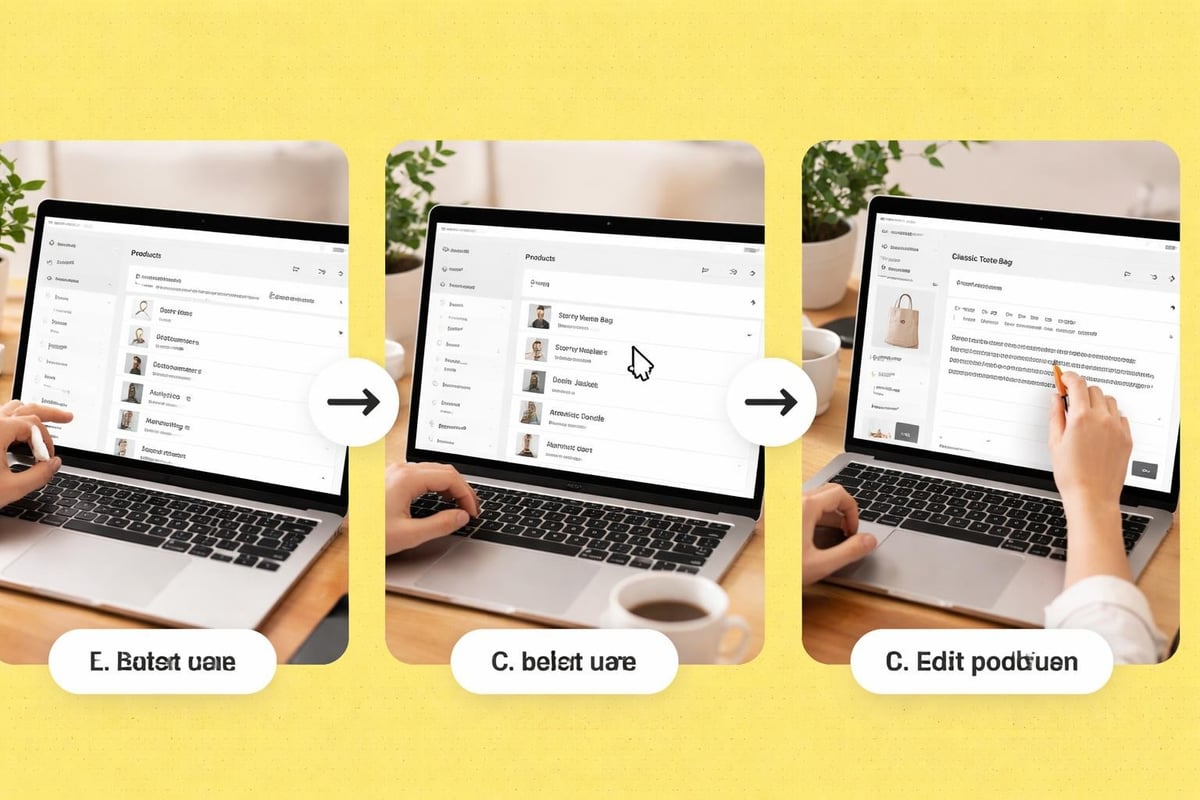
- Log into your Shopify admin dashboard
- Click on "Products" in the left-hand navigation menu
- Select the specific product you want to edit from the list
- Click on the product title to open the editing interface
From this interface, you can modify every aspect of your product listing. The Shopify admin organises information into clear sections, making it simple to locate specific fields you want to update.
Editing Basic Product Information
The foundation of any product page starts with accurate, compelling basic information. This section covers the essential fields you'll edit most frequently.
Product Title and Description
Your product title should be clear, descriptive, and include relevant keywords that customers might search for. When you shopify edit product page titles, consider both SEO value and customer clarity. The description field supports rich text formatting, allowing you to create structured content with headings, bullet points, and emphasis.
Best practices for product descriptions include:
- Writing benefit-focused copy that addresses customer pain points
- Using bullet points for easy scanning of key features
- Including dimensions, materials, and care instructions
- Addressing common questions proactively
- Incorporating relevant keywords naturally for search visibility
Working with a Shopify development partner can help you implement custom fields and enhanced layouts that go beyond standard description boxes, creating more engaging product narratives.
Media Management
Product images remain one of the most critical conversion factors on eCommerce sites. Shopify allows you to upload multiple images per product, reorder them, and even add 3D models or videos.
Media TypeRecommended SizeBest Use CaseProduct images2048 x 2048 pxPrimary product shotsLifestyle images2048 x 2048 pxContext and usage scenariosDetail shots2048 x 2048 pxTexture, materials, craftsmanshipVideos1920 x 1080 pxDemonstrations and unboxing
When editing media, click "Add media" within the product editor, upload your files, and drag images to reorder them. The first image serves as your primary product thumbnail across your store.
Configuring Pricing and Inventory
Accurate pricing and inventory management prevent overselling and maintain customer trust. The Shopify product editor provides comprehensive tools for managing these critical elements.
Setting Up Product Pricing
In the pricing section, you'll find fields for:
- Price - your standard selling price
- Compare at price - the original price for showing discounts
- Cost per item - your wholesale or production cost (for internal margin tracking)
- Profit margin - automatically calculated based on price and cost
Tax settings can be configured per product, allowing you to charge tax only on applicable items. You can also create customer-specific pricing if you're running a Shopify Plus store with wholesale capabilities.
Inventory Tracking
Shopify's inventory system tracks stock levels automatically when enabled. Key inventory settings include:
- SKU (Stock Keeping Unit) numbers for internal tracking
- Barcode information for warehouse management
- Quantity available across different locations
- Continue selling when out of stock options
Setting accurate inventory prevents disappointed customers and maintains operational efficiency. Regular inventory audits ensure your physical stock matches your Shopify data.
Managing Product Variants
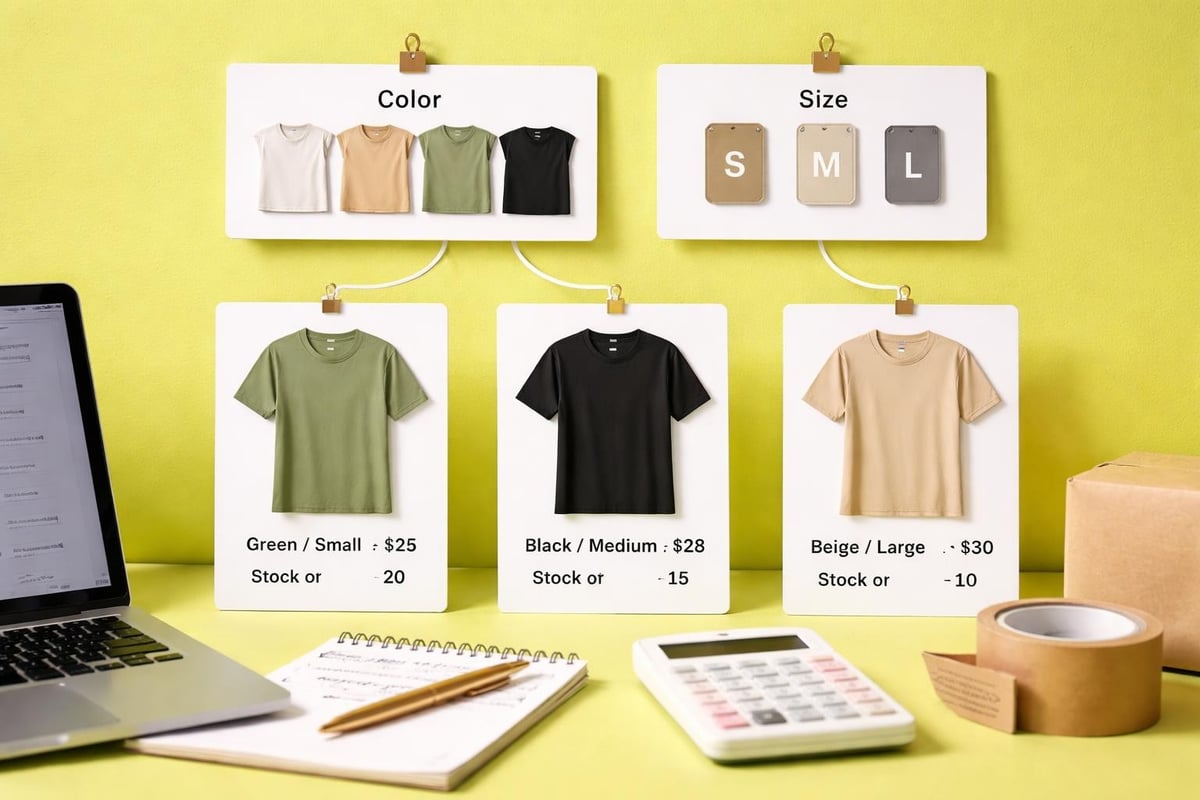
Variants allow you to sell products with multiple options like size, colour, or material without creating separate product listings for each combination.
Creating and Editing Variants
To add variants when you shopify edit product page settings:
- Scroll to the "Variants" section in the product editor
- Click "Add variant" or "Add another option"
- Define your option name (e.g., Size, Colour)
- Enter the option values (e.g., Small, Medium, Large)
- Set individual pricing, SKU, and inventory for each variant
Each variant can have its own price point, image, weight, and stock level. This flexibility accommodates complex product catalogues without overwhelming customers with separate listings.
Optimising Product Page SEO Settings
Search engine visibility drives organic traffic to your product pages. Shopify provides dedicated SEO fields for every product, giving you control over how your pages appear in search results.
Editing Meta Information
In the "Search engine listing preview" section, you can customise:
- Page title - the title displayed in search results (maximum 60 characters)
- Meta description - the summary shown beneath your title (140-160 characters)
- URL handle - the web address for your product page
Effective SEO requires balancing keyword optimisation with compelling copy that encourages clicks. Your meta description should act as a mini-advertisement for your product, highlighting unique benefits whilst incorporating relevant search terms.
Understanding how to do SEO on Shopify more broadly can help you develop a comprehensive strategy that extends beyond individual product pages to your entire store architecture.
URL Structure Best Practices
When editing URL handles, keep them:
- Short and descriptive
- Free from special characters or spaces
- Consistent with your product title
- Keyword-rich without keyword stuffing
- Permanent once published (changing URLs can harm SEO)
Shopify automatically creates URL redirects if you change a published product's URL, but it's best to get it right from the start.
Advanced Customisation with Theme Sections
Modern Shopify themes use sections and blocks that allow for extensive customisation without coding knowledge. When you shopify edit product page layouts through your theme editor, you can add, remove, and rearrange content blocks.
Working with Product Page Templates
Different products might benefit from different layouts. For example:
- Standard products - traditional layout with images, description, and add-to-cart
- Bundle products - enhanced sections showing included items
- Complex products - size guides, specification tables, and comparison charts
- Subscription products - recurring delivery options and frequency selectors
To assign a template:
- Navigate to the product in your admin
- Scroll to the "Theme templates" section
- Select from available product templates
- Save your changes
Some themes offer multiple product page templates by default. Custom templates require theme development knowledge or assistance from specialists like those at Futur Media.
Adding Custom Sections and Blocks
Shopify 2.0 themes allow you to add dynamic sections directly to product pages. Common additions include:
- Trust badges and security seals
- Customer review sections
- Related products and upsells
- Size guides and measurement charts
- Video demonstrations
- FAQ accordions
Access these customisation options through the theme customiser (Online Store > Themes > Customize), then navigate to a product page to see available sections.
Using Page Builder Apps for Enhanced Customisation
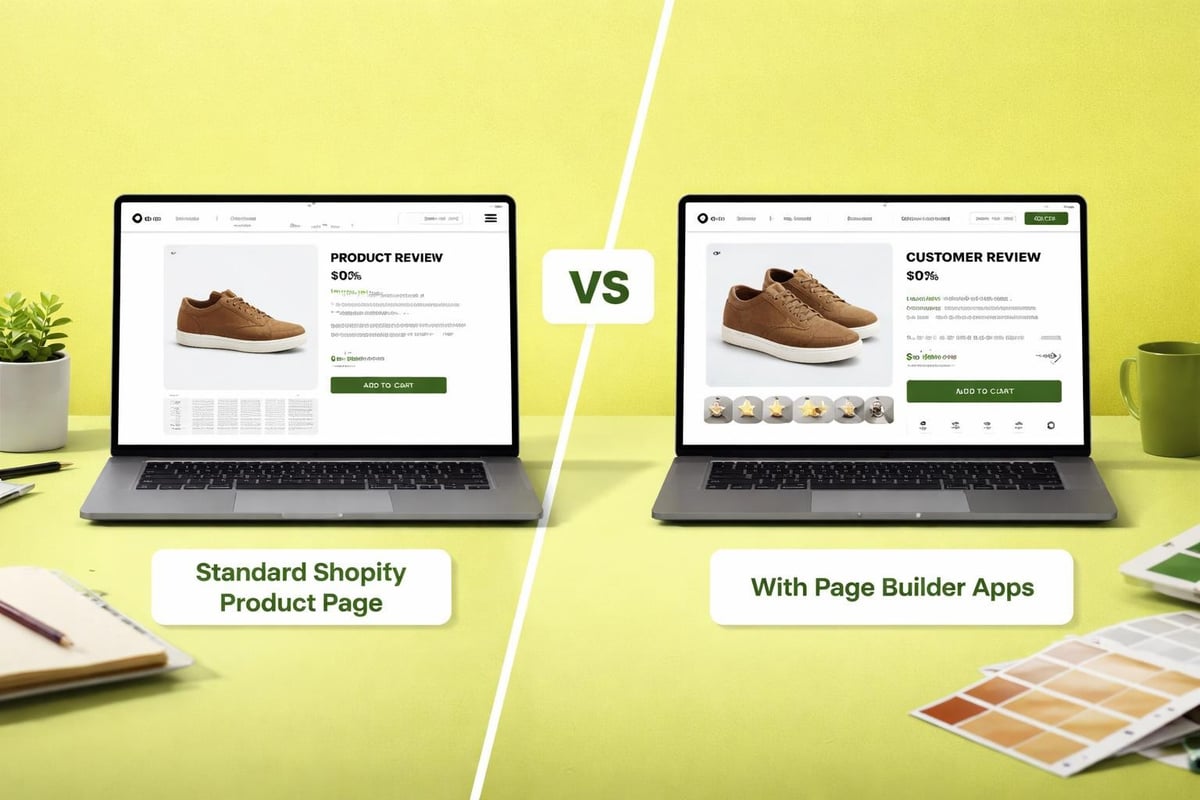
For brands requiring more design flexibility than standard theme options provide, page builder applications extend Shopify's native capabilities significantly. These tools allow you to create highly customised product pages without extensive coding.
Popular Page Builder Solutions
Several established page builders integrate seamlessly with Shopify:
AppBest ForKey FeaturePageFlyComplex layoutsExtensive element libraryShogunBrand-focused designAdvanced styling optionsGemPagesConversion optimisationBuilt-in CRO elements
Resources like PageFly's guide to adding content to product pages and Shogun's product page editing tutorial provide detailed walkthroughs for using these tools effectively.
When implementing page builders, remember that additional applications can impact page load speed. Balance design ambitions with performance requirements to maintain optimal user experience.
Implementing Product Page Best Practices
Beyond basic editing, optimising your product pages for conversions requires attention to proven eCommerce principles. These strategies help transform browsers into buyers.
Conversion-Focused Design Elements
Effective product pages incorporate:
- High-quality product photography from multiple angles
- Clear, prominent call-to-action buttons in contrasting colours
- Trust signals like secure checkout badges and return policies
- Social proof through customer reviews and ratings
- Urgency elements such as stock counters and limited-time offers
- Detailed specifications in easy-to-scan formats
Research from Acowebs on optimizing Shopify product pages highlights that pages incorporating these elements consistently outperform those with minimal information.
Mobile Optimisation Considerations
With mobile commerce accounting for the majority of eCommerce traffic in 2026, mobile-friendly product pages are non-negotiable. When you shopify edit product page content, preview changes on mobile devices to ensure:
- Images load quickly and display properly
- Text remains readable without zooming
- Buttons are large enough for touch interaction
- Checkout process flows smoothly
- Variant selectors work intuitively
Shopify themes are responsive by default, but custom modifications should be tested thoroughly across devices.
Bulk Editing Multiple Products
Managing large product catalogues becomes time-consuming when editing products individually. Shopify's bulk editor streamlines updates across multiple products simultaneously.
Using the Bulk Editor
Access bulk editing through:
- Navigate to Products in your admin
- Select products using checkboxes
- Click "Bulk edit" in the top menu
- Choose fields to modify
- Make changes and save
The bulk editor supports modifications to:
- Prices and compare-at prices
- Inventory quantities
- Product status (active/draft)
- Tags and product types
- Collections assignments
- Vendor information
This feature proves invaluable during seasonal sales, inventory updates, or strategic pricing changes across product categories.
CSV Import and Export
For extensive updates or migrations, CSV files offer powerful bulk management capabilities. Export your product data, modify it in spreadsheet software, then re-import to update multiple fields across thousands of products.
When working with CSV imports during Shopify migrations, maintaining data integrity is critical. Backup your store before major imports and validate data formatting to prevent errors.
Custom Fields and Metafields
Standard Shopify product fields cover most needs, but some businesses require additional custom information. Metafields extend product data beyond default options.
Understanding Metafields
Metafields store specialised information like:
- Care instructions for clothing
- Ingredient lists for beauty products
- Compatibility information for electronics
- Sustainability certifications
- Custom sizing charts
These fields can be displayed on product pages through theme customisation or apps. Creating and managing metafields requires understanding namespaces and keys, or using metafield management applications.
Advanced implementations might include metafields for:
- Product badges (New, Sale, Eco-friendly)
- Technical specifications in structured formats
- Related content or downloadable resources
- Product recommendations based on attributes
Testing and Validating Changes
After editing product pages, thorough testing ensures changes display correctly and function as intended across different scenarios.
Pre-Launch Checklist
Before making edited products live:
- Preview changes using Shopify's preview mode
- Test on multiple devices including mobile, tablet, and desktop
- Verify all links point to correct destinations
- Check variant functionality ensuring all combinations work
- Validate pricing calculations including discounts and taxes
- Confirm inventory accuracy across all locations
- Review SEO elements for completeness and accuracy
Testing prevents customer frustration and maintains professional standards. Even minor errors like broken images or incorrect pricing can significantly impact conversion rates and brand perception.
Monitoring Performance Post-Edit
After publishing changes, monitor key metrics to understand their impact:
MetricWhat It MeasuresTarget DirectionConversion rateVisitors who purchaseIncreaseBounce rateImmediate page exitsDecreaseTime on pageEngagement durationIncreaseAdd-to-cart rateProduct interestIncreasePage load speedTechnical performanceDecrease (faster)
Analytics tools within Shopify and Google Analytics provide insights into how product page changes affect customer behaviour and sales performance.
Maintaining Product Page Quality
Product page management is an ongoing process rather than a one-time task. Regular maintenance keeps information accurate and optimisation continuous.
Establishing Update Routines
Develop systematic approaches to product page management:
- Weekly reviews of inventory accuracy and pricing
- Monthly audits of product descriptions and images
- Quarterly optimisation based on performance data
- Seasonal updates reflecting current trends and offerings
- Continuous improvement testing new layouts and content approaches
Documentation of your product page standards ensures consistency, especially when multiple team members manage your Shopify store.
Responding to Customer Feedback
Customer questions and reviews highlight gaps in product information. When customers repeatedly ask the same questions, update your product pages to address these points proactively. This approach reduces support inquiries whilst improving conversion rates.
Guidance from CartCoders on Shopify customisation emphasises integrating social proof and customer feedback into product pages to build trust and provide authentic product experiences.
Working with Theme Code for Advanced Editing
For brands requiring customisation beyond Shopify's visual editors, theme code editing offers unlimited possibilities. This approach requires technical knowledge or professional assistance.
Understanding Liquid Template Language
Shopify themes use Liquid, a template language that combines HTML with dynamic content. When you shopify edit product page code directly, you're working with files like:
product.liquidormain-product.liquid- the primary product templateproduct-template.liquid- alternative template structures- Section files - modular components within product pages
Resources such as Instant's guide to customizing product pages provide comprehensive walkthroughs of Liquid customisation, including backing up themes before making changes.
When to Seek Professional Development
While Shopify's interface handles most editing needs, certain scenarios warrant professional development:
- Implementing complex product configurators
- Creating advanced variant selectors with visual previews
- Integrating third-party systems or custom APIs
- Building entirely bespoke product page layouts
- Optimising code for maximum performance
Professional agencies bring technical expertise whilst ensuring changes maintain compatibility with Shopify updates and best practices.
Integrating Product Pages with Marketing Strategies
Product pages don't exist in isolation. They form part of your broader eCommerce ecosystem, connecting with marketing campaigns, customer journeys, and business objectives.
Cross-Channel Consistency
Ensure product information remains consistent across:
- Your Shopify store
- Social media shopping integrations
- Email marketing campaigns
- Google Shopping feeds
- Marketplace listings (Amazon, eBay)
Inconsistent information confuses customers and damages trust. Shopify's product data serves as your single source of truth, feeding other channels through integrations and APIs.
Connecting Products to Collections
Strategic collection organisation helps customers discover relevant products whilst supporting your merchandising strategy. When editing products, assign them to appropriate collections based on:
- Product type or category
- Price range or brand
- Seasonal relevance
- Target customer segments
- Promotional campaigns
Well-organised collections improve navigation and enable targeted marketing initiatives.
Accessibility Considerations
Inclusive design ensures all customers can access and understand your product information, regardless of abilities or assistive technologies they use.
Essential Accessibility Features
When you shopify edit product page content, incorporate:
- Alt text for all images describing products clearly
- Descriptive link text avoiding generic phrases like "click here"
- Sufficient colour contrast between text and backgrounds
- Keyboard navigation support for all interactive elements
- Clear heading hierarchy for screen reader users
- Descriptive form labels for variant selectors
Accessibility isn't just ethical; it expands your potential customer base and often correlates with improved SEO performance.
Mastering how to edit your Shopify product pages effectively transforms your store from basic to exceptional, creating shopping experiences that inform, engage, and convert. Whether you're making simple price updates or implementing comprehensive customisation strategies, the principles outlined here provide a foundation for continuous improvement. At Futur Media, we help ambitious UK brands build high-performing Shopify stores that combine stunning design with conversion-focused functionality, supporting your growth through expert development, optimisation, and ongoing support.



.svg)